


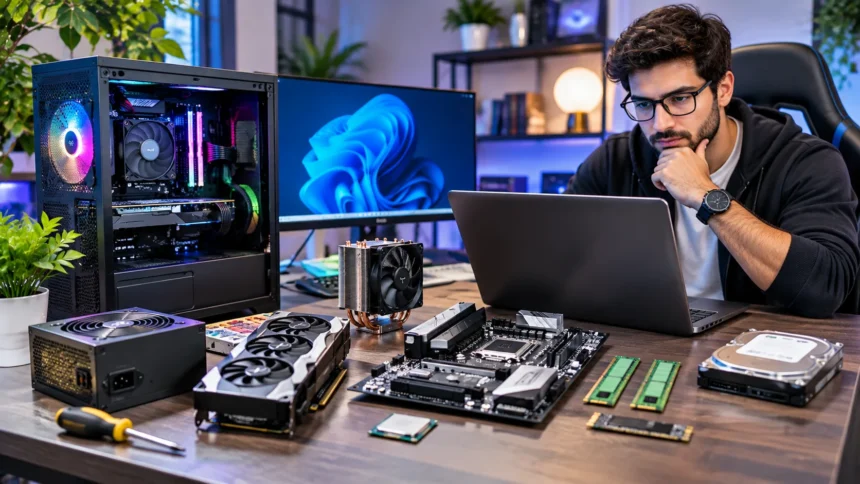
Computer hardware specifications explain what a computer can do, how efficiently it performs, and whether it can handle your everyday tasks. When comparing laptops, desktop computers, or individual components, you may notice technical details such as processor speed, RAM capacity, storage type, and graphics performance. These numbers and terms can seem confusing, especially if you are buying a computer for the first time. However, understanding the basics can help you make more informed decisions.
The right computer is not necessarily the one with the highest specifications or most expensive components. It is the system that matches your needs, whether you use it for studying, office work, programming, video editing, or gaming. This guide explains the most important computer hardware specifications, what each one means, and how to compare them before purchasing or upgrading a device.
What Are Computer Hardware Specifications?
Computer hardware specifications are technical details that describe the components inside a computer. They include information about the processor, memory, storage, graphics capabilities, motherboard, and other physical parts. Manufacturers provide these details to help customers understand a device’s features and performance potential. Learning how to read specifications makes comparing different systems much easier.
Each specification explains a particular aspect of computer performance or functionality. For example, processor details describe computing capabilities, while RAM capacity indicates how much working memory is available. Storage specifications explain how much information a computer can retain. These features work together, which means evaluating them individually does not always reveal overall system performance.
Understanding hardware specifications also helps you avoid purchasing unnecessary features. A computer designed for demanding creative software may offer more power than someone needs for basic document editing. Meanwhile, an inexpensive device may struggle with specialized applications. Comparing specifications with your actual workload helps you choose practical hardware without paying for capabilities you rarely use.

Why Checking Computer Specifications Matters
Checking computer specifications before purchasing helps you understand whether a device meets your requirements. Different tasks place different demands on processing power, memory, graphics, and storage. A system suitable for everyday browsing may not perform well during complex video editing. Reviewing these details can prevent disappointing performance and unnecessary replacement costs.
Hardware specifications also influence how long a computer remains useful for your activities. Sufficient memory, appropriate storage, and modern connectivity can support changing software requirements. However, high specifications do not automatically guarantee a longer lifespan. Build quality, software support, maintenance, and repairability also influence the overall ownership experience.
Comparing specifications can also reveal differences between similarly priced computers. One laptop may offer more storage, while another provides a better processor or display. Understanding these trade-offs helps you prioritize features that matter most. Instead of relying entirely on marketing descriptions, you can evaluate devices using measurable characteristics and practical performance expectations.
CPU Specifications: What to Check in a Processor
The central processing unit, commonly called the CPU, executes instructions and performs many calculations required by computer programs. Important processor specifications include architecture, generation, core count, thread support, and clock speed. These characteristics influence performance in different workloads. A suitable CPU helps applications respond efficiently and supports the overall computing experience.
Processor cores allow a computer to handle multiple streams of instructions. Applications designed for parallel processing may benefit from additional cores, while some tasks depend more heavily on individual core performance. Clock speed is measured in gigahertz, but higher numbers do not always indicate a faster processor. Architecture and efficiency also affect actual results.
When comparing processors, consider independent performance tests that reflect your intended activities. Office applications, programming tools, games, and creative software may place different demands on the CPU. Check whether the processor is compatible with the motherboard or laptop configuration. Selecting an appropriate processor is more useful than choosing the highest available specification without considering your workload.
Understanding CPU Cores, Threads, and Clock Speed
CPU cores are individual processing units within a processor that execute instructions. A processor with several cores can work on different tasks simultaneously, depending on software design. Threads describe streams of instructions that the processor can schedule for execution. Some processors support multiple hardware threads per core, which may improve efficiency in suitable applications.
Clock speed describes how many operating cycles a processor performs each second. It is commonly expressed in gigahertz, with modern processors often adjusting their speeds according to workload and power conditions. Base and boost clock specifications provide useful information, but they do not tell the complete performance story. Different processor designs can accomplish different amounts of work per cycle.
For everyday activities, balanced single-core responsiveness and adequate multicore performance are often more important than one impressive number. Demanding tasks such as rendering or compiling large software projects may benefit from additional processing resources. Thermal limits and power consumption can also affect sustained speed. Compare real-world results rather than assuming more cores or higher clock rates always mean better performance.
RAM Specifications: Capacity, Speed, and Type
Random access memory, or RAM, temporarily holds information that active applications need to access quickly. RAM specifications commonly include capacity, memory type, speed, and configuration. The amount of available memory can influence multitasking and application responsiveness. Choosing sufficient RAM helps reduce situations where the computer must rely heavily on slower storage.
For many basic computing tasks, 8GB of RAM may be workable, although 16GB often provides more comfortable multitasking. Demanding creative applications, large datasets, or virtual machines may benefit from 32GB or more. Actual requirements depend on software and workload. Checking recommended application specifications helps you avoid choosing an unsuitable memory capacity.
Memory technologies such as DDR4 and DDR5 differ in performance characteristics and compatibility. Their speed ratings can influence data transfer capability, although real-world improvements vary. Some computers use soldered memory that cannot be upgraded after purchase. Before buying, check whether the RAM can be expanded and whether the system supports the desired memory configuration.
Storage Specifications: SSD vs HDD
Storage specifications explain how much information a computer can retain and how quickly it can access that information. Common options include solid-state drives and hard disk drives. Both preserve files when the computer is turned off, but their internal technologies differ. Storage type can noticeably influence startup times, application loading, and file transfers.
Solid-state drives use flash memory to store data without moving mechanical parts. Hard disk drives use spinning magnetic platters and mechanical read/write components. SSDs generally provide faster access times and better responsiveness for everyday computing. HDDs can still be useful when large amounts of storage are needed at a relatively low cost.
When comparing storage, examine capacity, interface, and expected performance. A 256GB drive may suit basic needs, while 512GB or 1TB can provide more room for applications and personal files. Larger projects may require additional capacity. Choose storage based on actual usage rather than assuming every computer needs the largest available drive.
NVMe, SATA, and Storage Speed Explained
Storage interface specifications help explain how drives communicate with the rest of a computer. SATA is a commonly used connection standard for hard drives and certain solid-state drives. NVMe is a protocol designed for SSDs, usually operating over PCI Express connections. These technologies can provide noticeably different performance characteristics.
NVMe SSDs often offer higher sequential transfer speeds than SATA SSDs. This can be useful when moving large files or performing storage-intensive tasks. However, the difference may feel less dramatic during basic browsing or document editing. Application design, file size, and other hardware components influence the benefits you experience.
It is also important to understand that M.2 describes a physical form factor rather than a guaranteed speed. Some M.2 drives use SATA, while others support NVMe over PCI Express. Check motherboard compatibility and supported interfaces before purchasing a replacement drive. This prevents confusion when comparing products with similar appearances but different technical capabilities.
GPU Specifications: Integrated vs Dedicated Graphics
The graphics processing unit, or GPU, handles many calculations used to create images and process visual information. Important graphics specifications include processing architecture, memory, power requirements, and supported technologies. Graphics performance matters especially for gaming, three-dimensional applications, and certain creative workloads. Many everyday computing activities require far less graphical processing power.
Integrated graphics are built into the processor or another system chip and commonly share memory with the system. Dedicated graphics cards have separate graphics processors and usually include their own video memory. Integrated solutions can handle browsing, office applications, and many multimedia activities. Dedicated graphics may provide better performance for demanding applications, depending on the model.
When choosing a GPU, review the requirements of the programs you plan to use. Some professional applications benefit from particular graphics features or software support. Laptop GPUs may also perform differently from similarly named desktop versions because of power and cooling limits. Real-world application benchmarks provide a better comparison than product names alone.
VRAM Specifications and Graphics Memory
Video random access memory, commonly called VRAM, stores information used by graphics processing hardware. It can hold textures, image data, and other resources needed for rendering. Dedicated graphics cards typically include their own VRAM, while integrated graphics usually use shared system memory. Available graphics memory can influence performance when applications require large visual datasets.
Higher VRAM capacity may be useful for detailed games, complex three-dimensional scenes, and some professional workloads. However, more VRAM does not automatically make a graphics card faster. Graphics processor capability, memory bandwidth, software optimization, and power limits also matter. A balanced graphics system is more important than evaluating memory capacity in isolation.
Before purchasing a graphics card, check the recommended requirements for your intended applications. Consider display resolution, image quality settings, and the size of creative projects. Different workloads can demand different amounts of graphics memory. Selecting sufficient capacity helps avoid limitations without necessarily paying for unused resources.
Motherboard Specifications and Compatibility
The motherboard is the main circuit board connecting the processor, RAM, storage devices, and expansion components. Its specifications determine which hardware technologies and connections the computer supports. Important features include processor socket, chipset, memory slots, expansion interfaces, and storage connectors. These details are especially important when building or upgrading a desktop computer.
Processor compatibility should be checked before choosing a motherboard. Different CPU families require specific sockets and may depend on supported firmware versions. Memory generation and maximum capacity also vary between motherboards. Even components with similar specifications may not work together when their underlying standards differ.
Expansion features determine what additional hardware can be installed later. PCI Express slots support compatible graphics cards and other expansion devices, while storage connectors determine available drive options. USB ports, networking capabilities, and internal headers also affect usability. Choosing an appropriate motherboard involves matching present requirements with realistic future upgrade plans.
Display Specifications: Resolution, Refresh Rate, and Panel Type
Display specifications influence how text, images, and videos appear on a computer screen. Common details include screen size, resolution, refresh rate, brightness, and panel technology. A good display can improve everyday usability, especially during long periods of reading or creative work. The most suitable specifications depend on your activities and viewing preferences.
Resolution describes the number of pixels a display can show. Full HD, commonly 1920 × 1080 pixels, remains a familiar option, while higher resolutions provide additional detail when combined with suitable screen dimensions. Refresh rate describes how frequently a display updates each second. Higher refresh rates can make motion appear smoother when the computer delivers enough frames.
Panel technologies such as IPS, OLED, and VA offer different characteristics. Color reproduction, contrast, viewing angles, and response times can vary between individual displays. Creative professionals may prioritize color accuracy, while gamers may value responsiveness and refresh rate. Check independent testing where possible because impressive specifications do not always reflect actual display quality.
Battery Specifications for Laptops
Laptop battery specifications help estimate how long a computer may operate away from a power outlet. Battery capacity is often measured in watt-hours, which describes the energy a battery can store. Larger capacity can support longer operation, but actual battery life depends on many factors. Processor efficiency, display settings, and software activity all influence energy consumption.
Manufacturers often advertise battery life based on specific testing conditions. Real-world results may differ during gaming, video editing, or other demanding activities. Screen brightness, wireless connectivity, and background applications can also affect runtime. Comparing independent battery tests provides a more practical understanding of what to expect from a laptop.
Charging capabilities are another important consideration. Some laptops support USB-C charging, while others require dedicated power adapters. Charging speed depends on the device, adapter, cable, and power-management system. Check manufacturer requirements before purchasing replacement charging accessories to ensure compatibility and appropriate electrical safety.
Power Supply Specifications for Desktop Computers
The power supply unit provides regulated electricity to desktop computer components. Important specifications include rated wattage, efficiency certification, connector support, and physical dimensions. A suitable power supply must handle the expected demands of the processor, graphics card, and other devices. Reliable power delivery supports stable operation during different workloads.
Wattage describes the maximum rated output capacity under specified operating conditions. Choosing an appropriate rating requires considering the components’ power requirements and potential short-term demand changes. Efficiency certifications describe tested conversion efficiency, but they do not independently guarantee overall quality. Electrical protection features and manufacturer reliability also deserve consideration.
Before purchasing a power supply, check the required connectors and case compatibility. Some graphics cards need specific power connections or manufacturer-approved adapters. Modular cables can simplify installation, but connectors and cables must be used according to the manufacturer’s instructions. For internal power work or repairs, professional assistance is safer than experimenting with electrical components.
Cooling Specifications and Thermal Performance
Computer cooling systems help prevent excessive temperatures during operation. Processors, graphics cards, and other components produce heat when performing tasks. Cooling specifications may include heatsink dimensions, fan sizes, airflow ratings, and supported thermal capacity. Effective cooling helps maintain reliable performance during demanding workloads.
Desktop computers commonly use air coolers or liquid cooling systems. Air coolers transfer heat through metal surfaces and use fans to move warm air away. Liquid cooling systems circulate coolant through a closed loop to transfer heat toward a radiator. Both approaches can work effectively when properly matched to the hardware.
Thermal performance depends on more than cooler specifications alone. Case airflow, room temperature, component power consumption, and installation quality can influence operating temperatures. Some computers reduce performance automatically when thermal limits are reached. Comparing sustained performance tests can help reveal whether a system provides adequate cooling for its hardware.
Connectivity Specifications: USB, Wi-Fi, and Bluetooth
Connectivity specifications explain how a computer communicates with external devices and networks. USB ports, wireless networking, Bluetooth, Ethernet, and display outputs are common examples. These features affect the accessories and services a computer can support. Checking them before purchasing helps prevent compatibility problems with devices you already own.
USB connections vary in connector type, supported speed, and additional capabilities. A USB-C port does not automatically guarantee fast data transfer, display output, or charging support. Those features depend on the particular implementation. Reviewing the manufacturer’s detailed specifications helps clarify what each port can actually do.
Wireless networking standards also influence connection capabilities. Newer Wi-Fi technologies can provide improved performance under suitable network conditions, while Bluetooth supports compatible accessories such as headphones and keyboards. Actual connection quality depends on device support, signal conditions, and surrounding networks. Choose connectivity features that match your home, school, or workplace setup.
How to Check Computer Hardware Specifications
Checking computer hardware specifications is usually straightforward using built-in operating system features. On Windows, the Settings application provides basic information about the processor, installed RAM, and system type. Task Manager can display additional performance and hardware details. These tools help you understand a computer’s main components without opening its case.
On macOS, the About This Mac section provides an overview of important hardware information. Depending on the operating system version, additional details are available through System Information. Linux users can inspect hardware through system settings or appropriate information utilities. The exact method varies depending on the operating system and desktop environment.
Manufacturer websites and official product documentation can provide more complete specifications. Search using the exact device model rather than relying on a broad product family name. Different configurations may have different processors, memory capacities, or display options. Verifying the full model information helps prevent mistakes when upgrading components or comparing systems.
Computer Specifications for Students and Everyday Users
Students and everyday computer users often need reliable performance for browsing, documents, online learning, and video communication. These activities generally do not require expensive dedicated graphics hardware. A reasonably capable processor, sufficient RAM, and an SSD can support a comfortable experience. Portability and battery life may also be important considerations.
For many common tasks, 16GB of RAM and a 512GB SSD provide a practical starting point. Some users can manage with less, especially when their software requirements are modest. Others may need additional storage for large files or specialized applications. Checking software requirements helps determine whether a particular configuration is suitable.
Display quality, keyboard comfort, and connectivity should also influence the decision. A laptop used for extended writing sessions should have a keyboard and screen that feel comfortable. Adequate battery life can be helpful during classes or travel. Choosing balanced specifications often provides better everyday value than focusing entirely on processor performance.
Computer Specifications for Gaming and Creative Work
Gaming computers place particular demands on graphics processing, CPU performance, memory, and cooling. The most important specifications depend on the games, display resolution, and desired visual settings. A powerful graphics card may improve performance in visually demanding titles. However, the processor and other components must also support the intended workload.
Creative applications such as video editing, animation, and three-dimensional modeling may require substantial computing resources. Additional RAM can help with large projects, while fast storage improves certain file operations. Some applications benefit significantly from dedicated graphics hardware. Reviewing recommended specifications for individual programs provides a stronger foundation than general buying advice.
Professional workloads may also require accurate displays, dependable storage, and specialized connectivity. Consider whether your applications support particular hardware acceleration technologies. Large projects can generate substantial heat and power consumption during extended sessions. Balanced performance, cooling, and reliability should remain priorities when selecting equipment for demanding tasks.
Common Mistakes When Comparing Hardware Specifications
One common mistake is assuming that a higher number always indicates better performance. Processor clock speeds, core counts, and memory capacities cannot be compared meaningfully without understanding the underlying technology. Different generations and architectures may deliver different results. Independent testing provides useful context beyond the numbers shown on product listings.
Another mistake is overlooking compatibility and upgrade limitations. Some laptops use soldered memory, while certain desktop systems have limited expansion space. Storage interfaces and motherboard features may also restrict future changes. Checking these details before purchase can prevent expensive surprises when your needs evolve.
Buyers sometimes prioritize maximum performance while ignoring everyday usability. A powerful laptop with limited battery life or an uncomfortable keyboard may not suit frequent travel. Similarly, a desktop with excessive graphics power may provide little benefit for basic office tasks. Choosing hardware around your actual activities helps prevent unnecessary spending.
Conclusion
Understanding computer hardware specifications makes it easier to choose devices that match your needs and expectations. Processor capabilities, RAM, storage, graphics performance, and motherboard compatibility all influence computer functionality. Display quality, connectivity, cooling, and power requirements also deserve attention. Evaluating these features together provides a more complete picture than focusing on one impressive specification.
The best computer configuration depends on how you intend to use the device. Students may prioritize battery life and everyday responsiveness, while gamers and creative professionals may require stronger processing and graphics capabilities. Comparing realistic workloads, manufacturer documentation, and independent tests can help identify useful differences between systems.
Before purchasing or upgrading computer hardware, review compatibility, performance requirements, and long-term usability. Avoid paying for features that offer little practical benefit to your activities. With a clear understanding of essential specifications, you can make more informed decisions and select reliable hardware that supports your everyday computing needs.
Frequently Asked Questions
What are the most important computer hardware specifications?
The most important specifications usually include CPU performance, RAM capacity, storage type and size, and graphics capabilities. Display quality, battery life, connectivity, and upgrade options also matter depending on how you use the computer.
How much RAM is enough for a computer?
For many everyday tasks, 8GB can be workable, while 16GB often provides more comfortable multitasking. Demanding creative applications, virtual machines, and large projects may benefit from 32GB or more.
Is an SSD better than an HDD?
An SSD generally provides faster loading times, quicker file access, and better responsiveness than a traditional HDD. Hard drives can still offer economical storage for large collections of files where maximum speed is less important.
How can I check my computer specifications?
Windows users can check Settings and Task Manager, while Mac users can open About This Mac and System Information. Manufacturer documentation also provides detailed specifications for specific computer models and configurations.
What specifications should I check before buying a laptop?
Check the processor, RAM, SSD capacity, display, battery life, ports, and wireless connectivity. Also consider keyboard comfort, weight, build quality, and whether the laptop can run your required applications effectively.